
How to import a Lightroom catalog as a style with Rylux
Mattia Peretti · November 10, 2026 · 3 min read
With Rylux you can do many things with a RAW file: compare an edit with the original, create a style from photos you love, rate your shots and group the near-identical ones. If you have years of photos developed in Lightroom Classic, there is a shortcut: Rylux reads your catalog and builds a style from the way you edited.
This guide goes through the import, from choosing the catalog to adding more of them later.
To try it, join the waitlist: Rylux is in beta.
What Rylux takes from a catalog
Import from Lightroom… reads one or more Lightroom Classic catalogs, the files with the .lrcat extension. It brings two things:
- Ratings: the photos get back the stars you gave them in Lightroom.
- Style: for every photo you developed, Rylux compares the RAW file with your finished version and looks for the sliders of its own that recreate it. From all the photos it builds a style that adapts to the light of every shot: one for color photos and, if there are enough, one for black and white.
Start the import
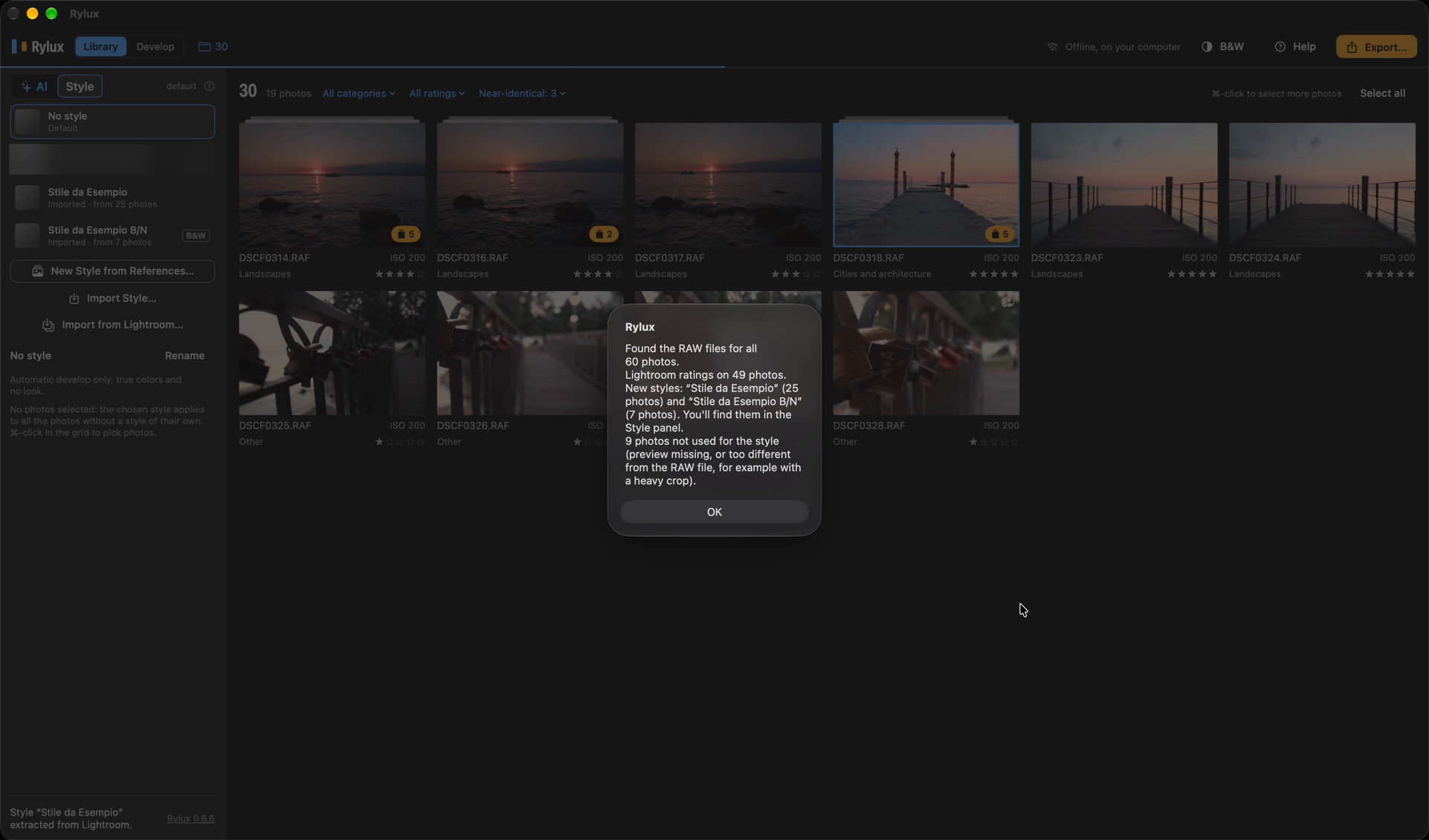
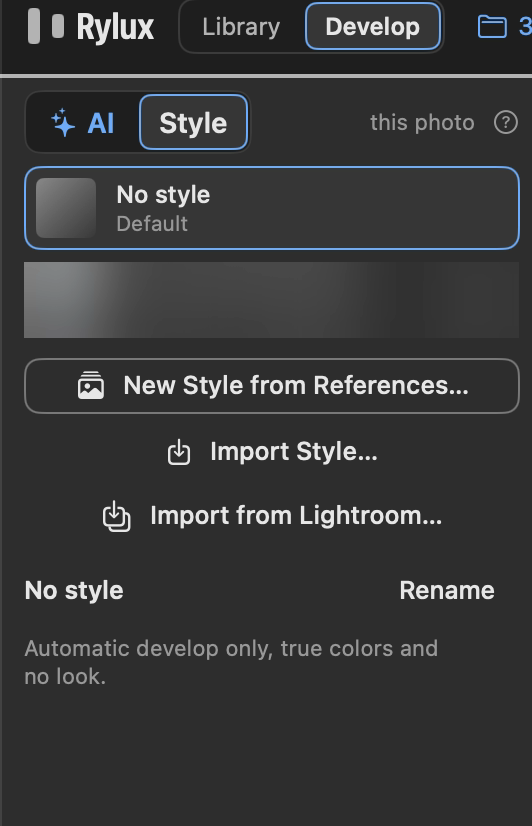
You find Import from Lightroom… in the Style tab or in the File menu. Choose the catalog. To use several at once, ⌘-click them in the window: you get a single style from all of them.
For about thirty photos the import takes under a minute.
If the RAW files have moved
If the RAW files are no longer where Lightroom saw them, Rylux asks for the folder that holds them. It looks for them by name, subfolders included, even if they have become DNG in the meantime.
What a catalog needs
- At least 5 developed photos for each style.
- Previews: Rylux uses the previews that Lightroom keeps next to the catalog, in the "Previews.lrdata" folder. A photo without a preview is left out.
- Masks and local brushes: photos that have them are used only when there are few without.
Add more catalogs later
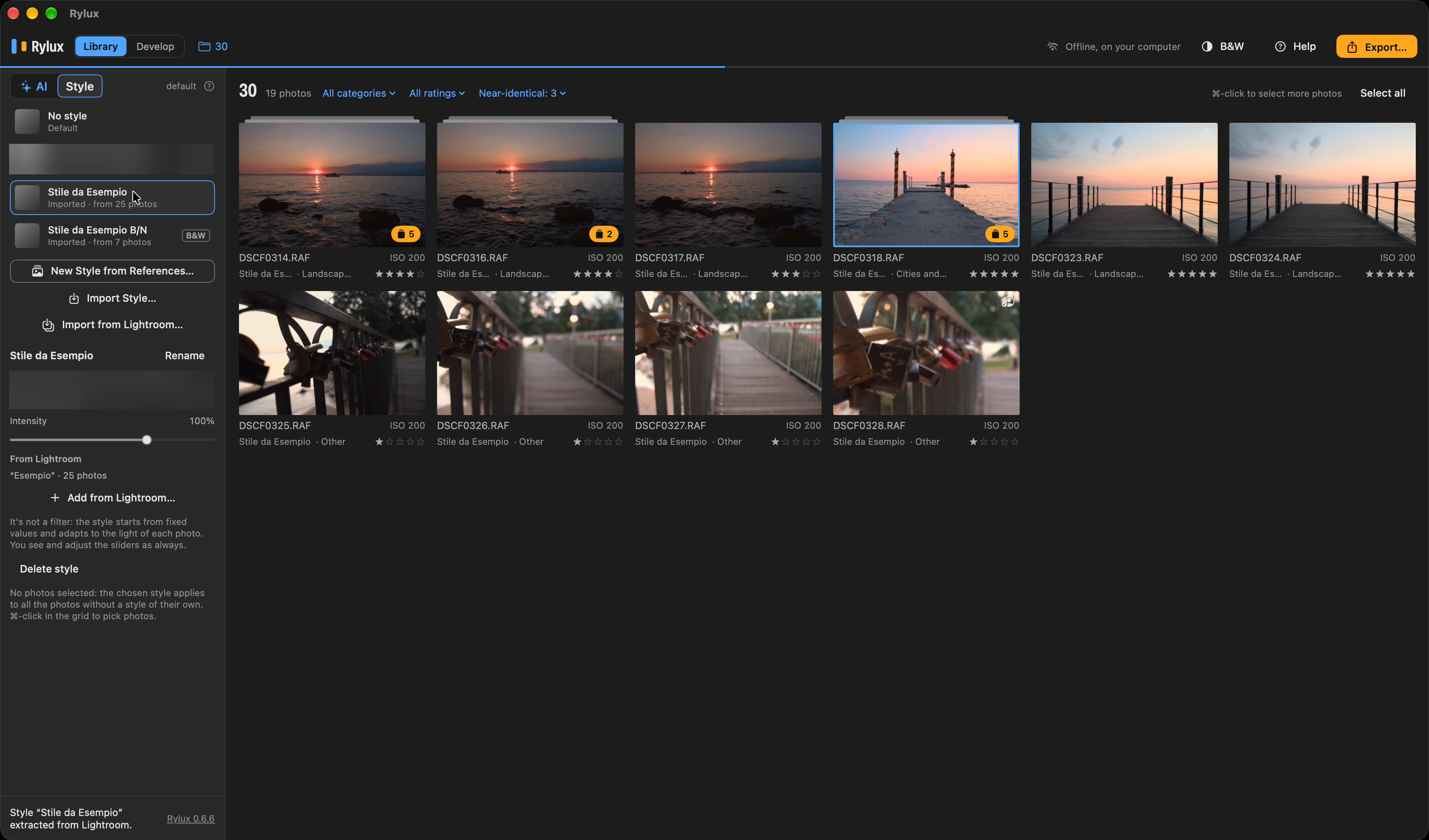
A style taken from Lightroom can grow:
- Add from Lightroom…, under the style, adds the photos of other catalogs to it, and the style is recalculated. If you import the same catalog again, each photo counts only once.
- Merge with other styles… creates a new style from the photos of several styles, all color or all black and white. The original styles stay. The button shows up only when you have at least two styles imported from Lightroom of the same kind.
- Remove, next to a catalog, recalculates the style without its photos. It shows up only when the style comes from more than one catalog.
For this, a style remembers the photos it comes from as numbers only: the photo's measurements and the sliders that recreate your version. It holds no images.
Use the style
An imported style works like any other: apply it to a photo, a selection or the whole folder, and set its Intensity.
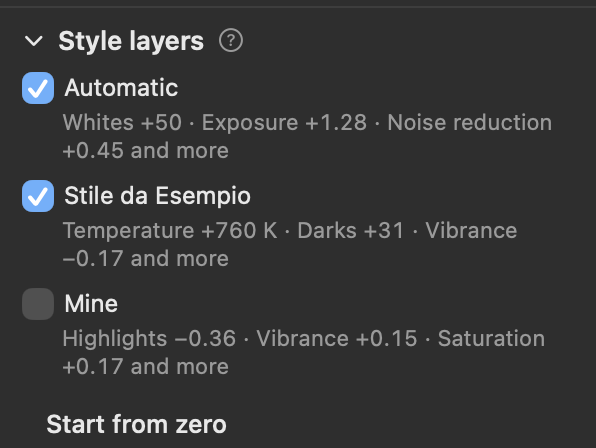
In the Develop panel the style is a row in Style layers. Turn Mine off to judge it alone. Rename or delete it from the Style tab.
Limits
Rylux extracts a style from your catalog and does not copy Lightroom's values photo by photo. Lightroom's adjustments for single photos are not imported.
The catalog is read from a copy, so Lightroom and your files stay as they are. Everything happens on your Mac.
Try it
The Lightroom import is in the Style tab and in the File menu of Rylux. Rylux is a Mac app that develops RAW files on your own computer, and it is in beta. Join the waitlist at www.rylux.app.