
Is your AI photo editor uploading your RAW files?
Mattia Peretti · November 8, 2026 · 7 min read
Many AI photo editors work on your RAW files on their own servers. You pick a folder, a progress bar fills up, and nowhere does the app tell you which country your files are going to.
I build Rylux, a Mac app that develops RAW files on your own computer. So I have a stake in what follows, and I will say where that stake shows. The facts below come from the public documentation of the services involved. The opinions are mine.
If you shoot only for yourself, this might be a small matter. If other people are in your frames, it is not.
(If you want the short version first: Rylux keeps everything on your Mac, and you can join the waitlist at www.rylux.app. The rest of this article explains why that matters.)
What leaves your Mac
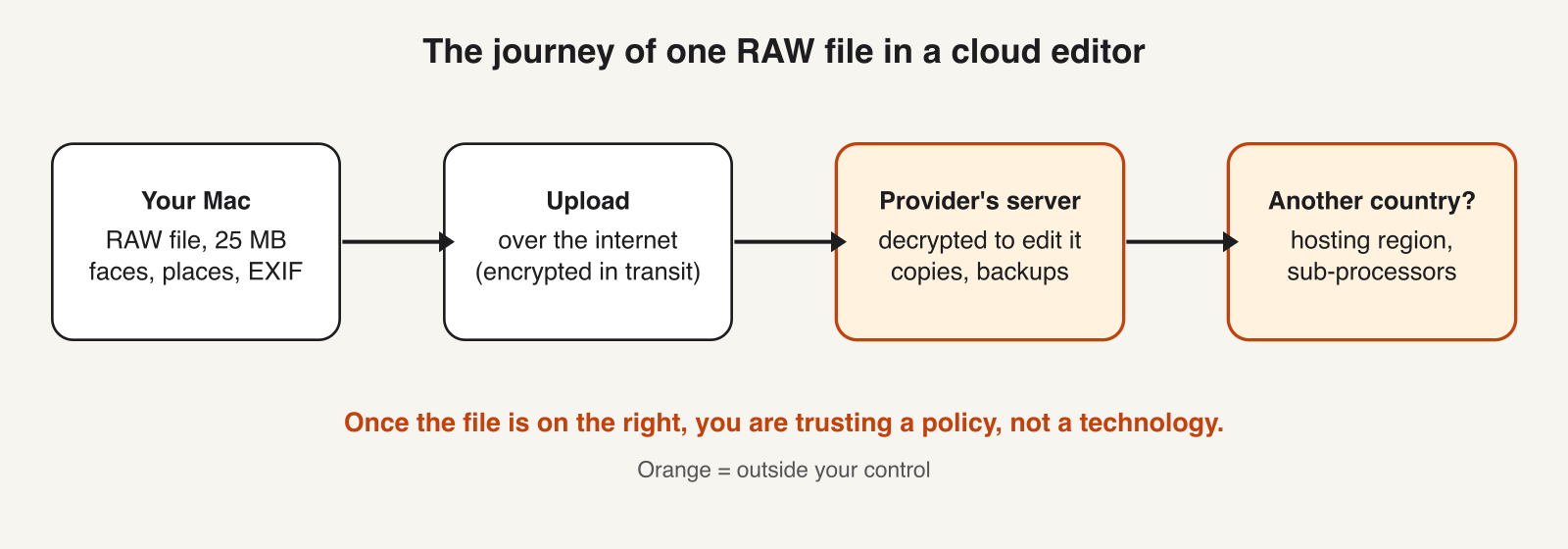
A RAW file is more than pixels.
- The picture itself, often 25 MB or more.
- EXIF data: camera serial number, date, time, sometimes GPS position.
- Faces of clients, friends and strangers.
- The context of the shoot: a wedding, a newborn session, a private house.
Under the GDPR, a photo of an identifiable person is personal data. If you shoot for clients, you are most likely the data controller. Any company that processes your files is your processor, and Article 28 expects a data processing agreement between you. Your client holds you responsible for what happens to the files, whoever's server they sit on.
Three myths to ignore
"My files stay in Europe." Not by default. We read the public documentation of two widely used AI photo editors in November 2026. The first uploads your files. Its documentation says customer data lives on a major US cloud provider, in regions in the United States.
The second runs most of its work on your computer, but sends small copies of your images to its servers for some learning features, switched on by default. Its documentation names a big cloud provider and no region. The formal policy we could read dates from 2023 and names no transfer mechanism.
Where the answer is public, it is the United States. Where it is not public, you cannot tell.
None of this is unlawful in itself. Transfers to the US can rest on the EU-US Data Privacy Framework or on standard contractual clauses. The work falls on you: find the region, find the mechanism, and put both in your client contract. This is not legal advice, and policies change, so read the current text.
"It's encrypted, so it's safe." That depends on who holds the key. See the next section.
"Local means a weaker editor." Developing a RAW file is arithmetic on pixels, and a modern Mac does it well. A local app does leave some things out, and the comparison below lists them.
Encryption: who holds the key?
People mean three different things by "encrypted".
- In transit. The upload travels over HTTPS. Anyone listening on the network sees noise.
- At rest. The provider stores your file encrypted on disk and keeps the key, because its software has to open the file to edit it. This protects against a stolen hard drive. It does not protect against the provider, a court order served on it, or an attacker who finds the key next to the data.
- With a key only you hold. The file is encrypted on your Mac and the server stores noise.
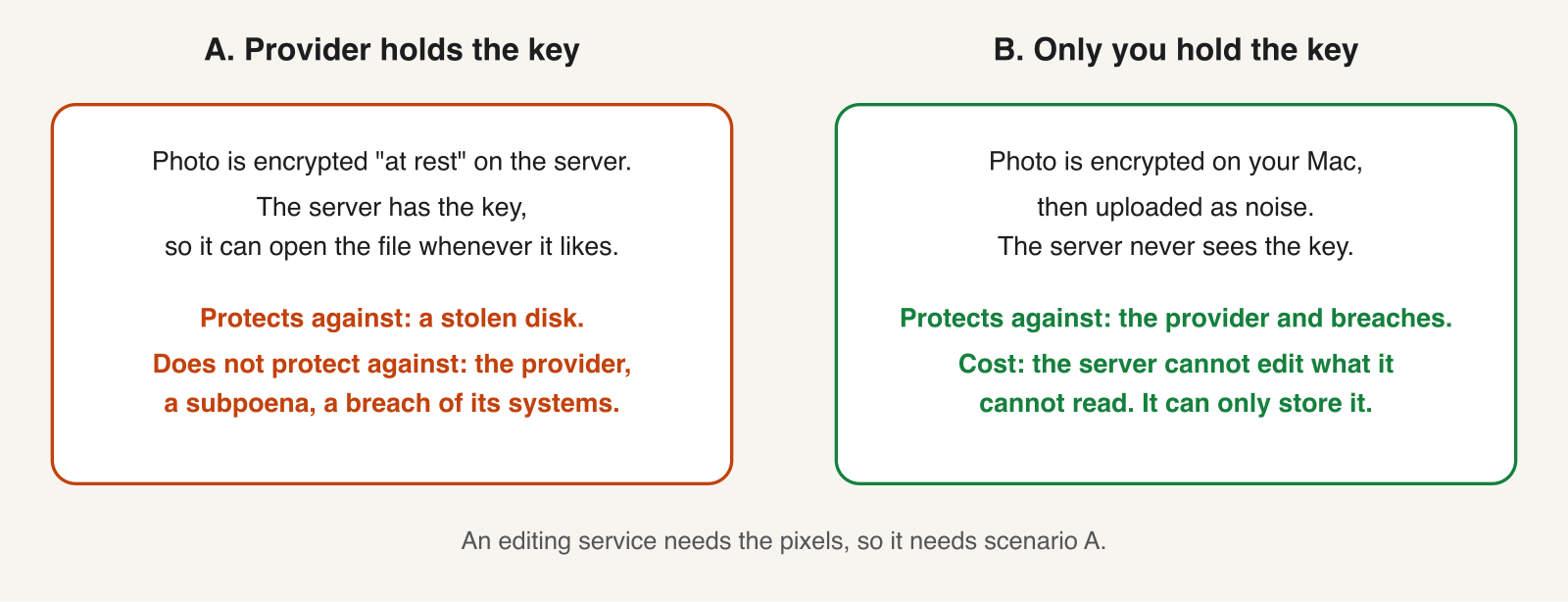
The third is the strong one, and an editing service cannot use it. To change the exposure of a photo, the server has to see the pixels. Computing on encrypted data (homomorphic encryption) exists in research, but it is far too slow for RAW development. A cloud editor sits in the second case by design.
A thought experiment: a photo on a server that only I can open
Suppose I upload a photo to a server and I am the only one with the password. How safe is it?
In 1949 Claude Shannon defined perfect secrecy: an encrypted file that tells the attacker nothing about the original, however much computing power they have. His example is the one-time pad. Combine every byte of the photo with a byte of a truly random key, using XOR. The key must be as long as the photo, used once, and kept secret.
This is what it looks like on a real photo. The mountain on the left becomes the noise in the middle. I made that noise with the operation just described.
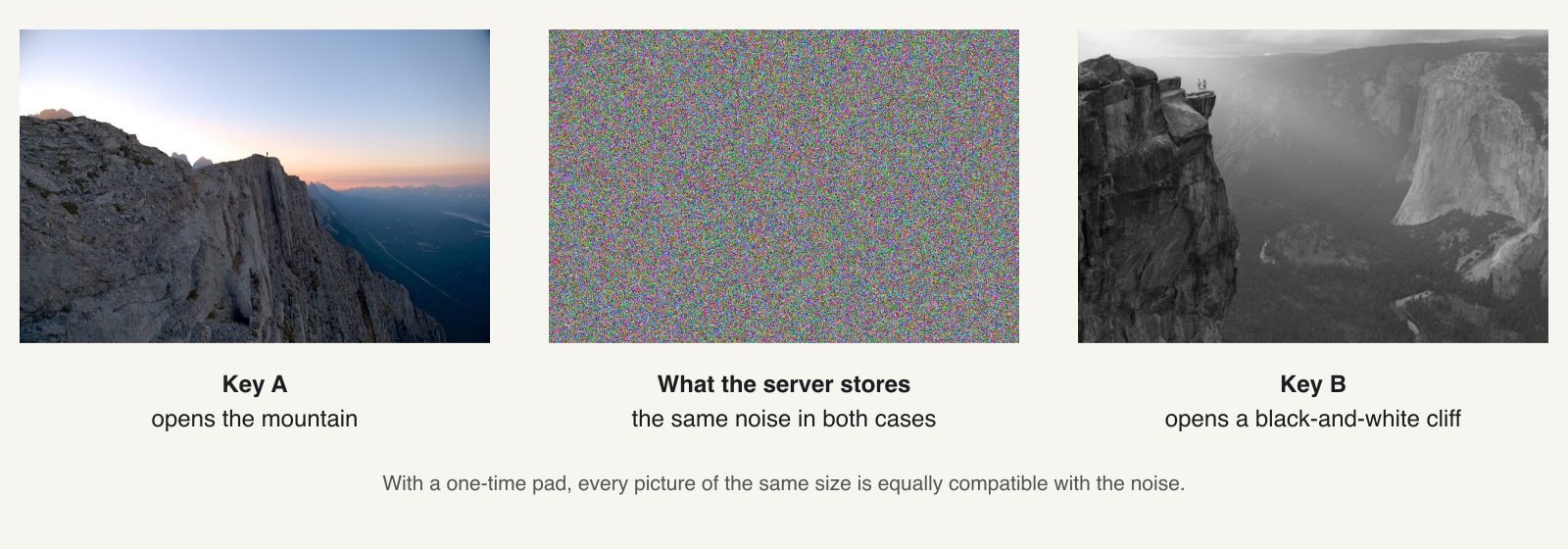
Look at the right-hand image. For the same noise there is another key that turns it into a different picture. A thief who steals the noise cannot tell which key is the right one, because every key gives a valid picture. Brute force has nothing to recognize as success.
Nobody does this with photos, for two reasons.
- A 25 MB RAW file needs a 25 MB random key, a new one for every file. You cannot remember it, so you store it, and then the key file needs the protection the photo needed.
- Reusing a key breaks it. Two files encrypted with the same key can be XORed together, which cancels the key and exposes how the photos relate.
Real systems use AES with a 128 or 256 bit key. That is computational security: the key can be found in principle by trying every possibility, and there are too many to try. AES-256 holds up well.
So the photo is as safe as your key, and your key is only as good as your password. A password is much shorter than the 256 bits the cipher expects. Software stretches it with a deliberately slow function, which helps, but a pet's name plus a year still falls to a guessing attack. A long random passphrase does not.
Even with a perfect key the server learns that the file exists, its size, when you uploaded it and how often you open it. Encryption hides the content and leaves the fact.
One legal remark, with caution because it belongs to lawyers: under the GDPR, encrypted data generally stays personal data for anyone who can decrypt it. For a provider that really cannot, the position is less clear.
Cloud or your Mac: the honest comparison
A cloud editor
Pros
- Works on a weak computer, because the servers do the work.
- Can run heavy models you could not fit on a laptop.
- Reachable from any device.
Cons
- Your files, with faces and EXIF data, sit on someone else's servers.
- You depend on their policy for region, retention and training use.
- Often priced by the photo.
An app on your Mac
Pros
- No second party. The answer to "where are my files?" is the folder you put them in.
- Works offline.
- No per-photo bill from us for processing, because nothing is processed on our side.
Cons
- You need a reasonably recent Mac.
- Storage and backups are yours to organize.
- It does not retouch skin or hair, and it does not run the largest models.
For people who photograph friends, families and clients, I think the Mac column wins. If you retouch a hundred portraits a day and need every model available, the first column is a fair trade, so long as you know what you are trading.
If you are curious how the Mac column feels in practice, Rylux is in beta and the waitlist is open.
Five questions to ask any editor before you upload
- In which region are my files stored, and who hosts them?
- What legal mechanism covers the transfer if that region is outside the EU?
- How long are my full-resolution files kept?
- Are my photos used to train your models, and can I switch that off?
- If you say "encrypted", who holds the key?
If the documentation does not answer these in plain words, write to support and keep the reply with your client contract.
How Rylux answers
Rylux removes the second party.
- Development runs on your Mac. Rylux reads your RAW files where they already are. It never modifies the originals.
- Your style comes from your own photos. Rylux extracts a style from a few reference photos and learns from the corrections you make. It stays in a folder on your computer.
- The assistant runs locally too. Ask Rylux AI to "show the landscapes" or "give four stars to the portraits" and a model on your Mac does the work. The app downloads that model once. After that it works with the Wi-Fi off, and our demo video starts with the Wi-Fi turned off on purpose.
If a client asks how you handle their photos, you can answer in one sentence.
Try it
Rylux is in beta for macOS. Join the waitlist at www.rylux.app. If your first problem is the pile of files that comes home after a shoot, Rylux Organizer is free. It sorts your photos by date from the card to your archive, also without uploading anything.